-
Hardware overview (IFP105S)
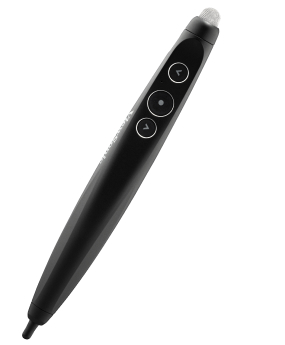
Welcome to ViewBoard and your newly acquired interactive flat panel (IFP). Your ViewBoard IFP33 series comes with various components to assist in connecting devices and enhance your usage of the ViewBoard. This article introduces the basics of the IFP33's additional hardware, as well as gives an overview of the display's control panel and ports. Res
-
Remote control (IFP105S)
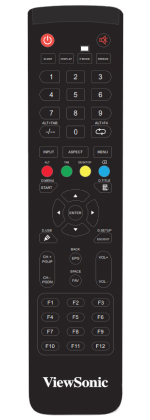
This article provides an overview of remote control functionality for your ViewBoard. Remote control function breakdown Fonction 1 Allumer/Éteindre. 2 Muet/Activer le son. 3 Activer/Désactiver le mode veille. 4 Pour une source d'entrée non-ViewBoard, affiche les informations de la source d'entrée actuelle. 5 Écran vierge. 6 Geler/Dégeler l'écran. 7
-
Connecting devices (IFP105S)
This article will provide requirements for connecting devices to your ViewBoard using different input/output sources. External device with touch connection Different connection methods may require multiple cables connecting your external device to your ViewBoard. The following methods display the video feed from your external device onto the ViewBo
-
Powering on and using your IFP33
This article highlights the basics of powering on your IFP33 and getting started with the display. Power your IFP33 ON/OFF Follow these steps to starting using your ViewBoard: Before turning on your ViewBoard, ensure the power cord is connected, plugged into a power outlet, and the device's power switch is in the ON position.
Press the Power button
-
How to customize the side toolbar (IFP105S)
You can access always-available tools in the side toolbar. The icons to open this toolbar are always accessible no matter which app you have open or which input source you're in. How to access side toolbar tools Side toolbar icons highlighted at the left, right, and bottom edges of the ViewBoard home screen, with open toolbar highlighted at the ce
-
Quick Settings menu (IFP105S)
To access a Quick Settings menu, which includes input source options and display/audio settings, press the input source button at the bottom-left of the screen, or press the input source icon in the side toolbar. Quick Settings open with input tab selected, overlaying the home screen. Input Sources In the Menu popup, find the following options: Q
-
Access ViewBoard OS settings (IFP105S)
The ViewBoard input source is the default source that is active when turning on your ViewBoard. Access settings for your network, preferences, apps, security, and more. How to access ViewBoard settings Option 1: On the remote control, press the menu button . Option 2: On the remote control, press the INPUT button on the remote control. Make sure
-
Network & internet settings (IFP105S)
In the network and internet settings menu, view your network connection status and manage Wi-Fi, ethernet, wireless hotspot, Bluetooth, and VPN configurations. Network & Internet settings menu. WI-FI ADAPTER REQUIRED FOR CERTAIN FEATURES To configure Wi-Fi, wireless hotspot, and Bluetooth settings, these options will only become available when
-
Personal settings (IFP105S)
Adjust the Wallpaper, Screen Saver, Swipe, Multi-Window, and Window Control Bar settings. Wallpaper Screen Saver Set and adjust screen saver settings. Swipe Up Options at the Bottom Choose from Bottom Sidebar and Source Menu. Multi-Window Mode Display more than one app at the same time on screen when turned on. Window Control Bar Choose from On Top,
-
Input & Output settings (IFP105S)
Adjust the Sound, Input, and External Source Display settings. Input & Output settings menu. Sound Adjust Touch Sound and Sound Output Settings. Input & Output settings menu. Input Settings Set labels for each input source that will be easily recognized when displayed by adjusting Input Naming Settings. Input & Output settings menu. Exte
-
Applications settings (IFP105S)
View application information and force stop, uninstall, move to USB storage, clear data, clear cache, and clear defaults. Pre-loaded apps cannot be uninstalled.
Not all apps support the move to USB storage feature.
Not all apps support Clear Defaults. By touching a running application, you can see more information, stop, or report the application.
-
System settings (IFP105S)
View and adjust General, Display, System Tools, Startup & Shutdown, and Improvement settings. System settings menu. General View and adjust General, Display, System Tools, Startup & Shutdown, and Improvement settings. All General settings. Date & Time Set the system time and format. Date & Time settings menu. Language & Keyboard
-
Administrator settings (IFP105S)
View and set Administrator, Control, Clone, Kiosk Mode, and Security settings. Administrator settings menu. Administrator Set an Administrator password to set up Administrator settings. Control Toggle Wake On LAN and HDMI CEC On or Off. Item
Description Wake On LAN The display will turn on automatically after plugging in a LAN cable when the screen
-
About (IFP105S)
View Legal Information, Module Number, Android Version, Kernel Version, and Build Number. Image Caption