
Class interaction via Companion
Participants and Guest can use the Companion app to interact with myViewBoard sessions. Interactions include the ability to share files, respond to quizzes, and answer polls, and available to all roles regardless if they signed in as a Host, Participant, or Guest.
Participate screen
After signing to the Companion app, the available features change according to the role of the user:
-
Participants
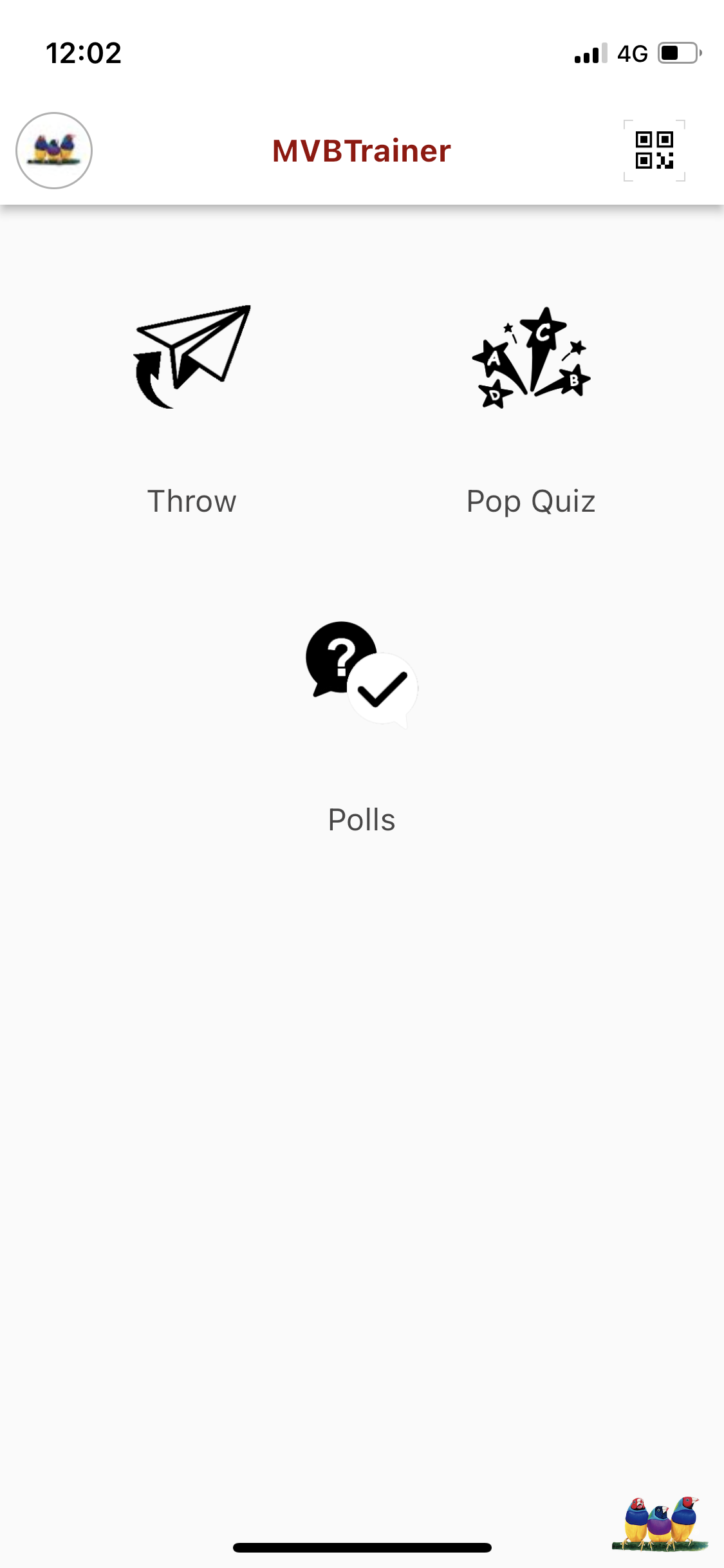
Participants will be asked to provide a Host session ID and a name. By default, this will be the email address associated with their ViewSonic account. After clicking join, they will be presented with the interaction options on the next screen.
-
Guests
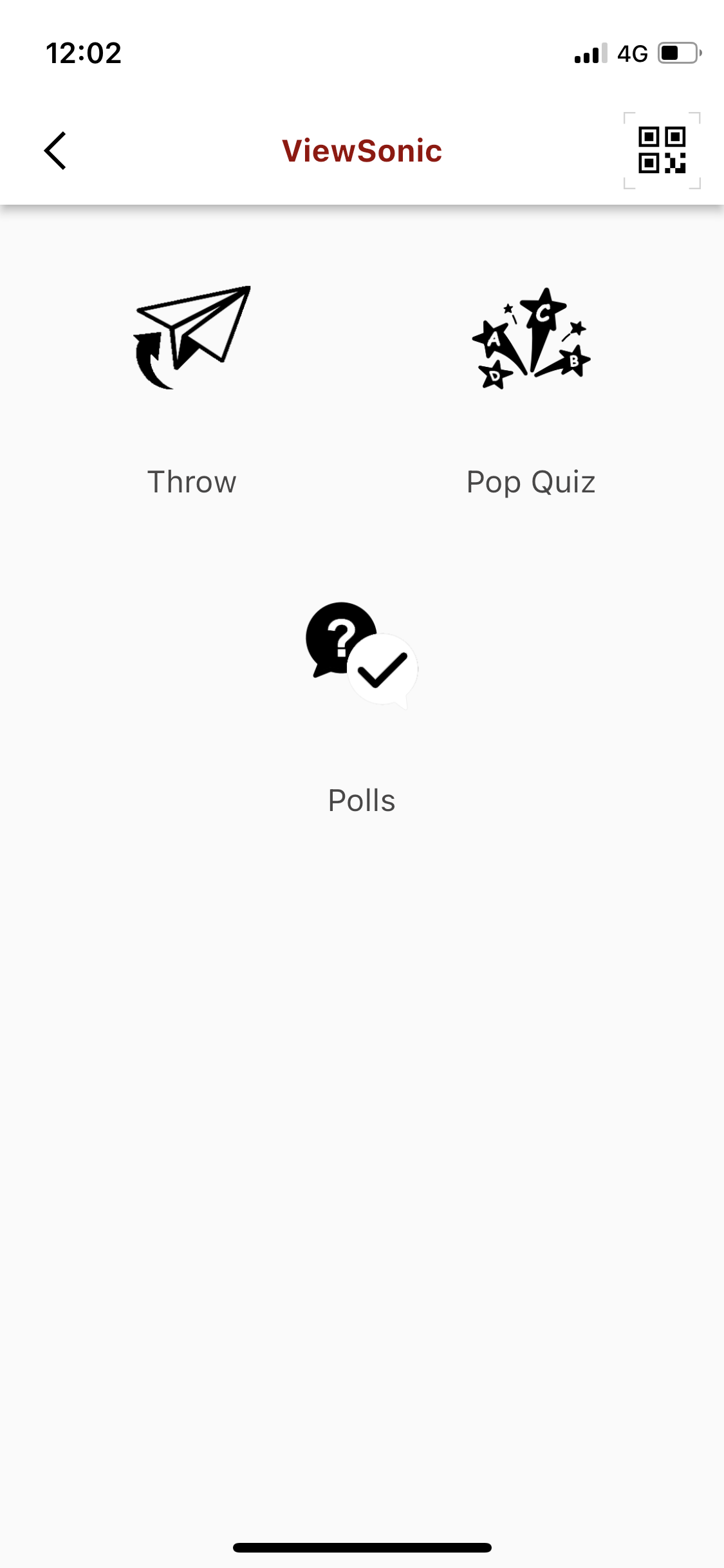
Since Guests were asked to provide the Host session ID on sign in, they will be presented with interactions options after sign in. To change or switch to another Host session ID, tap the QR code icon on the upper right.
-
Hosts
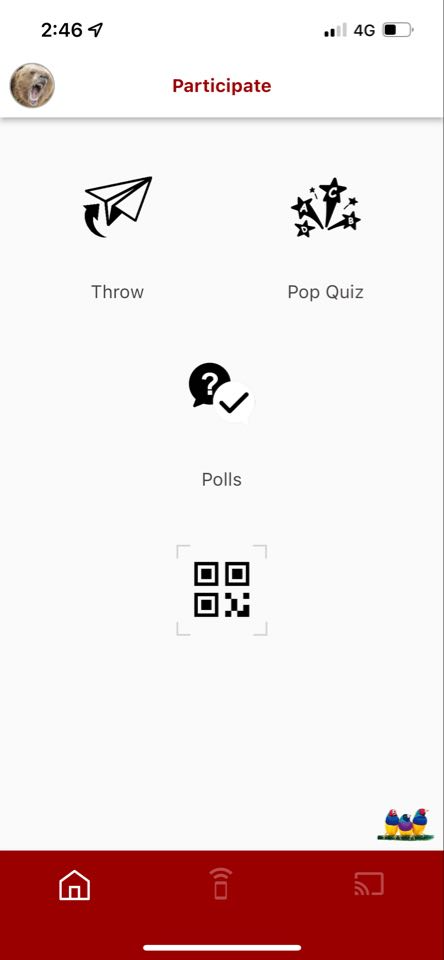
Hosts will be presented with interactions options after sign in. Note that since this role does not require a Host session ID, it auto-loads the session ID associated with the account you used to sign in. They cannot switch to another Host session ID while their own account is logged in.
Companion offers the following interaction options:
|
Throw Send files to a myViewBoard canvas |
|
|
Pop Quiz Respond to a Pop Quiz |
|
|
Polls Respond to a Poll question |
|
|
QR Code Launches the camera app to scan a QR code. The function changes depending on role selected:
|
Share files via Throw
The Throw feature allows all users to share files or photos from their mobile device directly to a myViewBoard session. To use the Throw feature, perform the following:
- Tap the Throw icon.
- Select Camera or Browse, and then take a picture or select a file.
- Enter the Host session ID, or scan the QR code of the myViewBoard.
- The host name field is automatically filled in with the last host interacted with.
- Tap the Throw History icon to see a list of past host names.
- Tap the Throw icon to send the file.
- Wait for the myViewBoard session host to receive a notification.

Throw feature
Select Camera and then take a picture, or Browse and select a file. Enter the Host session ID, or scan the QR code of the myViewBoard session. Tap the Throw icon to send the file.
View Throw history
Users can view their past Throw history and recall files that were previously sent. To view history and recall files, perform the following:
- Tap your avatar in the top-left corner.
- Tap Throw history.
- Tap the Back arrow on the file you want to recall.
If the recall was successful, the thrown file will be “called back” and “removed” from the session of the target host.
Note the following behavior:
- The ability to successfully recall files depends on your network connection.
- This feature is only available for Host/IT Admin and Participant roles.
- To send a file to your own myViewBoard session, ensure both Companion app and myViewBoard app are signed in with the same ViewSonic account. To access all thrown files on the myViewBoard app, go to the following locations:
- Open the Settings » Notifications menu
- Open the Magic Box, and then select Throw
Respond to a Pop Quiz
Users can respond to Pop Quiz questions through their mobile device. To answer a Pop Quiz question, perform the following:
- Tap the Pop Quiz icon.
- Perform one of the following:
- Use the Pen, Text, or AI Pen tools to draw or write an answer.
- Alternatively, tap the Folder icon to select a a local file.
- Tap the Throw icon to send your drawing or file to the myViewBoard canvas.
- Wait for the myViewBoard session to receive a notification.
To create a response, use the following icons:
|
Folder Add images from the device. Drag the image to the trash to delete. |
|
|
Move Moves any image or text on the screen. |
|
|
Text tool Press to add text. Drag the text to the trash to delete. |
|
|
Eraser Erase strokes. To delete text or images, drag to the trash. |
|
|
Pen Tap to hand-write an answer. To change width, tap the icon again. |
|
|
AI Pen Draw and select from the presented icons, based on your drawing. |
|
|
Color Change the active pen color. |
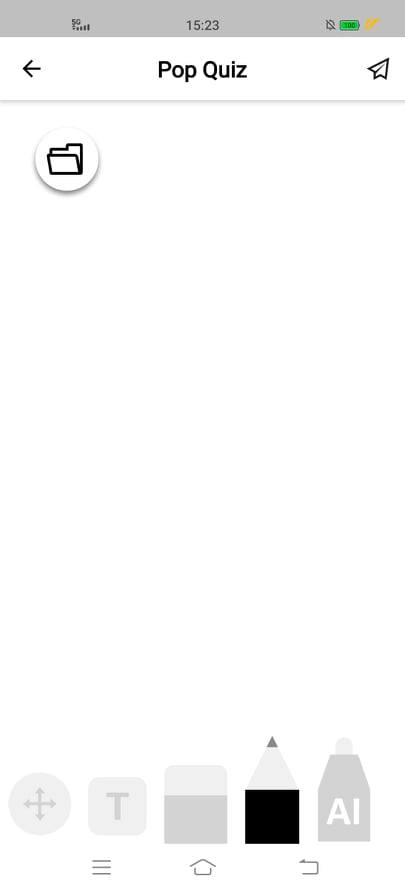
Pop Quiz feature
Use the Pen, Text, or AI Pen tools to draw or write an answer on the mobile canvas. Alternatively, tap the Folder icon to select a a local file.
Answer Poll questions
The Polls feature allows users to respond to Poll questions. To submit an answer to a poll, perform the following:
- Tap the Polls icon.
- Join the poll by performing one of the following:
- Type the myViewBoard host name
- Scan the QR code
- Provide a name for this session, and tap Join.
- Wait for the Poll questions to appear in the Companion app.
- Select or type the answer.
- Tap the Throw icon to submit your answer.
- Once done, the response will be logged in the Polls session for the host to review.
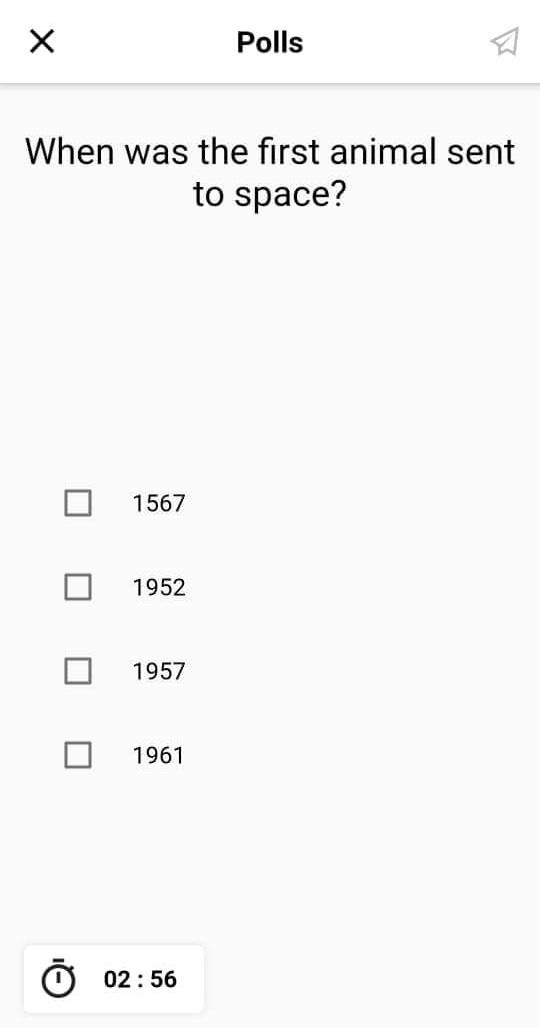
Polls feature
Once the Poll questions appear in the Companion app, select (or type) the answer then tap the Throw icon to submit.