

Respond to a Pop Quiz
Participants can use the Companion app to send responses to an ongoing pop quiz on the active myViewBoard session via the Pop Quiz feature. This feature is available to all users signed in with a Host, Participant, or Guest role.
Prepare the canvas
Perform the following so the board is ready to receive the files sent by your audience.
- Sign in to the myViewBoard app.
- Tap Magic Box on the main toolbar.
- Tap Pop Quiz on the new menu to open a new popup.
- Note the QR code at the bottom.
- Tap the QR code to view a larger version.
Note other methods to interact with the session:
- Hosts can also tap the session name at the upper left of the myViewBoard app to display the QR code for the active session.
- If the Companion app is not available, audience members can use the Host's myViewBoard portal online to Throw files via the URL displayed in the QR code window.
Respond to a Pop Quiz
Audience members can start responding to the Pop Quiz questions through their mobile device. To answer a Pop Quiz question, perform the following:
- Tap the Pop Quiz icon.
- Perform one of the following:
- Use the Pen, Text, or AI Pen tools to draw or write an answer.
- Alternatively, tap the Folder icon to select a a local file.
- Tap the Throw icon to send your drawing or file to the myViewBoard canvas.
- Wait for the myViewBoard session to receive a notification. Responses from the audience will also start appearing on the Pop Quiz window.
To create a response, use the following icons:
|
Folder Add images from the device. Drag the image to the trash to delete. |
|
|
Move Moves any image or text on the screen. |
|
|
Text tool Press to add text. Drag the text to the trash to delete. |
|
|
Eraser Erase strokes. To delete text or images, drag to the trash. |
|
|
Pen Tap to hand-write an answer. To change width, tap the icon again. |
|
|
AI Pen Draw and select from the presented icons, based on your drawing. |
|
|
Color Change the active pen color. |
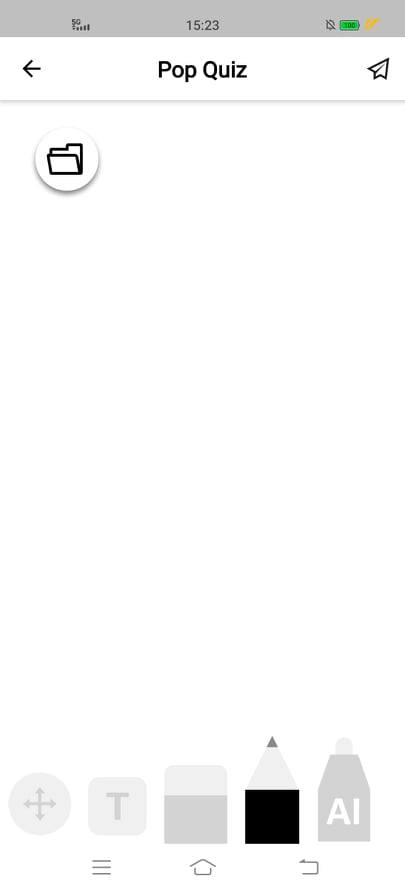
Pop Quiz feature
Use the Pen, Text, or AI Pen tools to draw or write an answer on the mobile canvas. Alternatively, tap the Folder icon to select a a local file.
Video walkthrough
For a quick visual guide, see the video below: