
Answer Poll questions
Participants can use the Companion app to send responses to an ongoing poll on the active myViewBoard session via the Poll feature. This feature is available to all users signed in with a Host, Participant, or Guest role.
Prepare the canvas
Perform the following so the board is ready to receive the files sent by your audience.
- Sign in to the myViewBoard app.
- Tap Magic Box on the main toolbar.
- Tap Poll on the new menu to open a new popup.
- Note the QR code at the bottom.
- Tap the QR code to view a larger version.
Note other methods to interact with the session:
- Hosts can also tap the session name at the upper left of the myViewBoard app to display the QR code for the active session.
- If the Companion app is not available, audience members can use the Host's myViewBoard portal online to Throw files via the URL displayed in the QR code window.
Answer Poll questions
Audience members can start responding to the Poll questions through their mobile device.To submit an answer to a poll, perform the following:
- Tap the Polls icon.
- Join the poll by performing one of the following:
- Type the myViewBoard host name
- Scan the QR code
- Provide a name for this session, and tap Join.
- Wait for the Poll questions to appear in the Companion app.
- Select or type the answer.
- Tap the Throw icon to submit your answer.
- Once done, the response will be logged in the Polls session for the host to review.
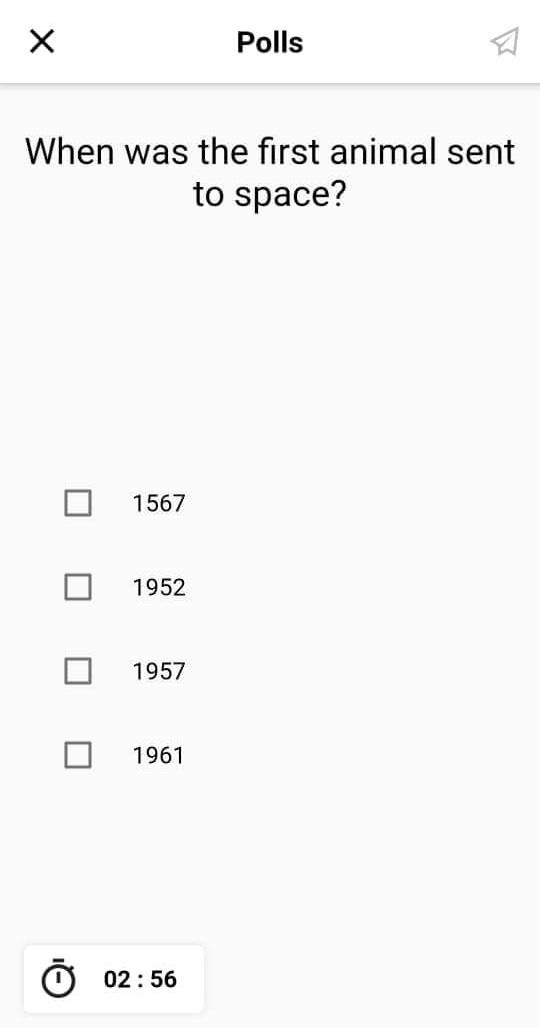
Polls feature
Once the Poll questions appear in the Companion app, select (or type) the answer then tap the Throw icon to submit.